

Stream to Facebook Live: Page, Profile or Group
Step-by-step with pictures: get your Facebook stream key and server URL from Live Producer, turn on a persistent stream key, paste them into LeagueOrbit Go live, and go live to your Page, profile or Group with the score on screen.
Last updated
The names and results shown are made up (the Maple Street Pool League is a demo organization).
To stream to Facebook Live, LeagueOrbit sends your stream to Facebook with a stream key. You don't sign in to Facebook in LeagueOrbit: you copy two things from Facebook Live Producer, the Server URL and the Stream key, and paste them into Go live once. With a persistent stream key, you can use the same key every week.
You need a computer or a phone browser for Facebook Live Producer. On a phone, use the browser (not the Facebook app) and switch to the desktop site if Facebook asks.
1. Open Live Producer and choose where to post
- Go to facebook.com/live/producer and sign in to Facebook.
- Under Choose where to post, pick your profile, a Page you manage, or a Group. Groups can only be streamed to this way.
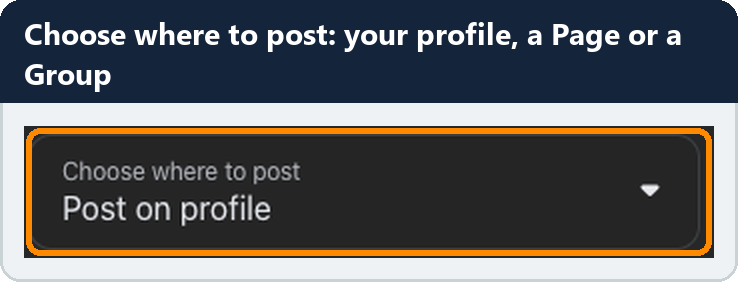
- Choose Set up live video. This only opens the setup; nothing is posted yet.
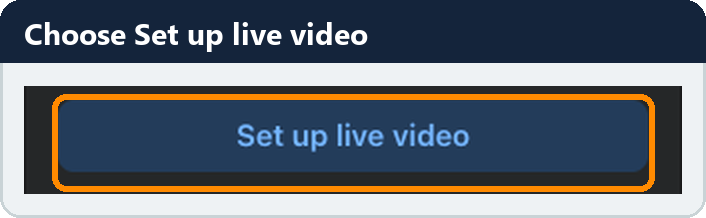
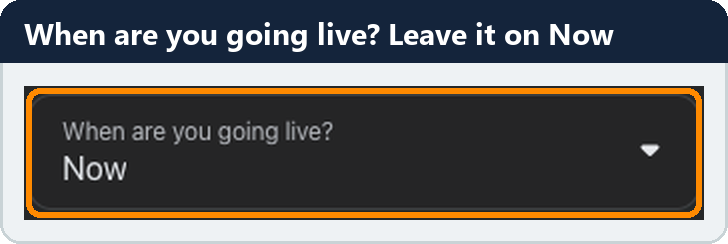
- Leave When are you going live? on Now.
2. Choose Streaming software and copy the key
- Under Select a video source, choose Streaming software.
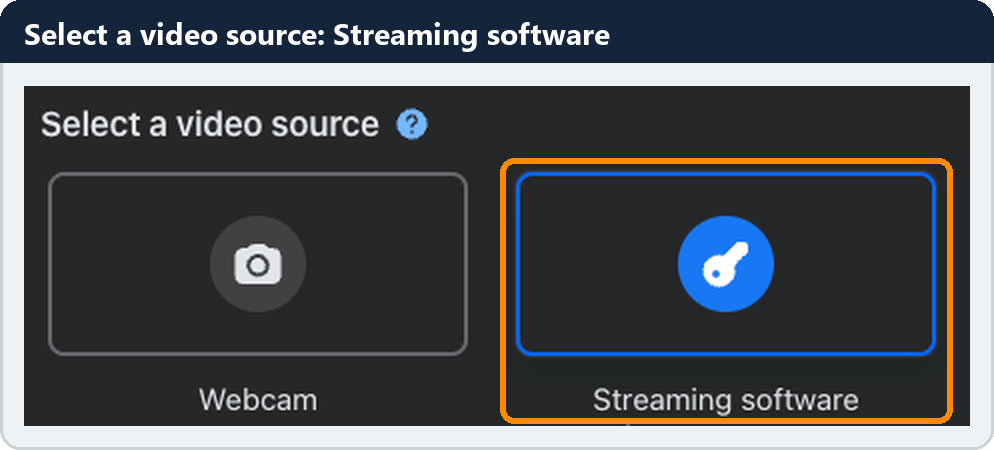
Zoomed picture: Facebook Live Producer: Select a video source, with Streaming software selected
- Open Advanced settings and turn on Persistent stream key. Your key then stays the same every time you go live, so you only paste it into LeagueOrbit once. You can stream one live video at a time with it.
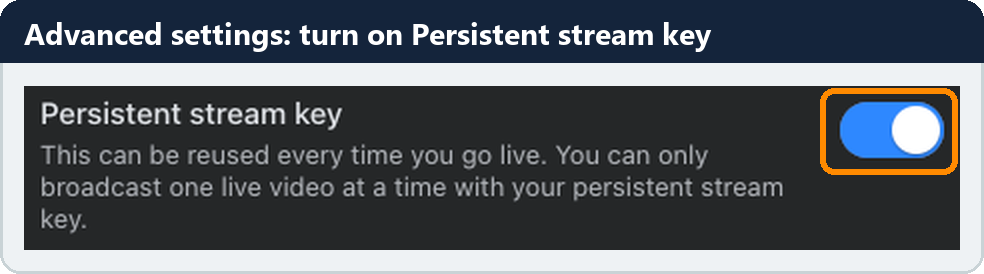
Zoomed picture: Facebook Live Producer: Advanced settings, with Persistent stream key turned on
- Copy the Server URL. It is rtmps://live-api-s.facebook.com:443/rtmp/ (LeagueOrbit fills it in for you).
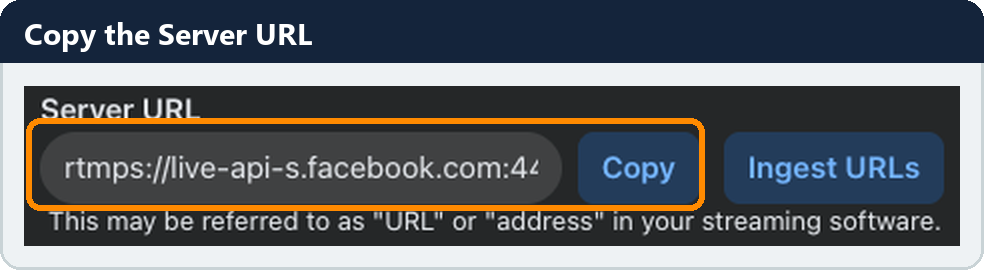
- Copy the Stream key. Keep it private: anyone with it can stream to your Facebook. If it ever gets out, press Reset in Live Producer and paste the new one into LeagueOrbit.
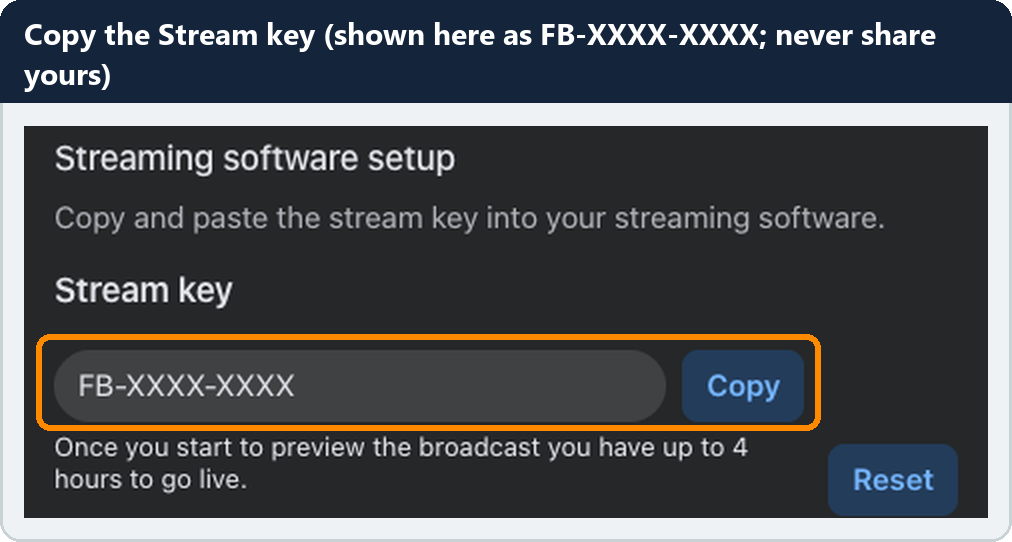
Zoomed picture: Facebook Live Producer: the Stream key field (shown as FB-XXXX-XXXX) with its Copy button
3. Paste them into LeagueOrbit
- In the LeagueOrbit app or on the website, open Go live and choose Set up a stream.
- Pick Facebook as where people watch, then choose Next.
- On Connect your accounts, open Paste a stream key. Check the Stream URL (server), paste your Stream key, give it a name if you like (for example "League night"), and choose Save and use.
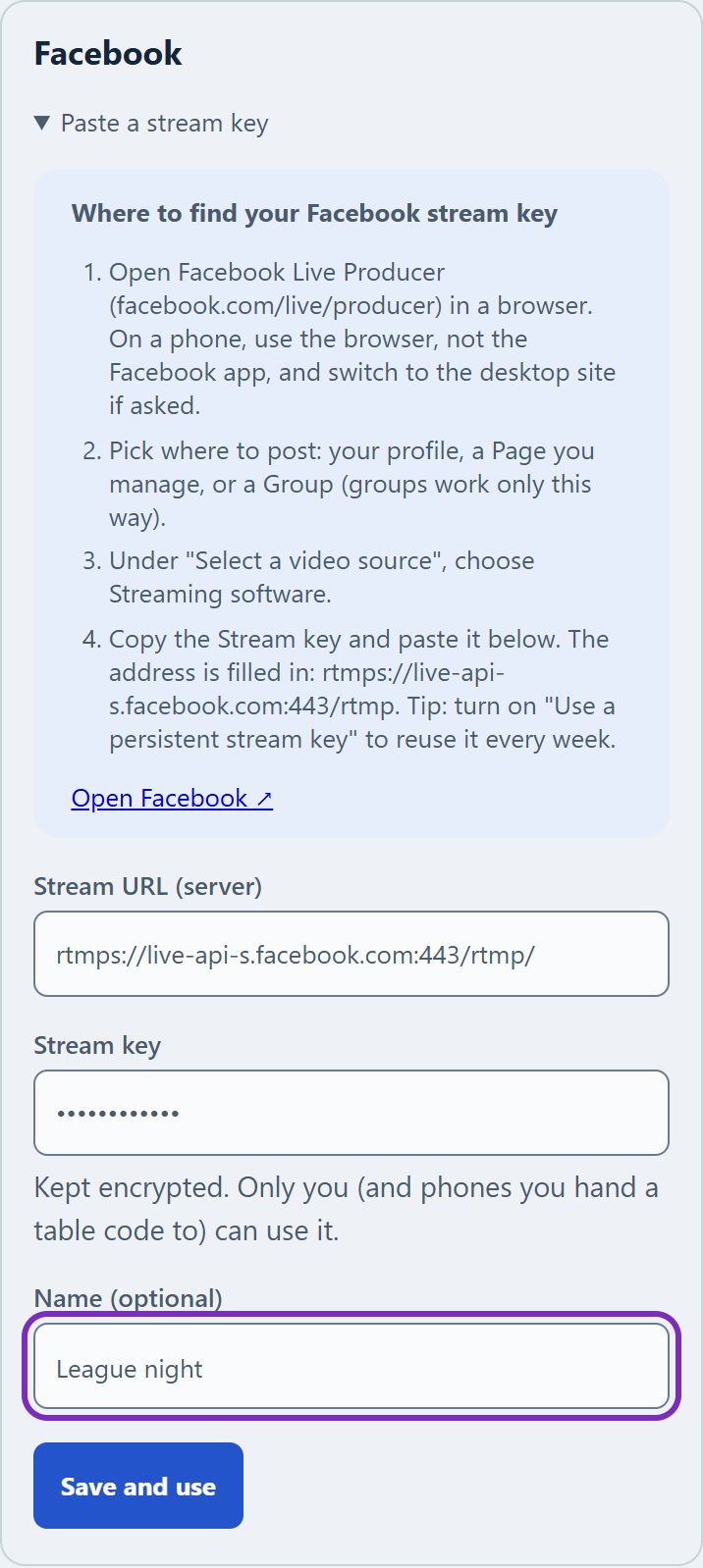
Zoomed picture: LeagueOrbit Go live: the Facebook card with Paste a stream key open, the Facebook server address, the stream key hidden, a name and Save and use
The key is kept encrypted, and next time it's under Saved on the same card, or in Go live again.
Tip: turn on the stream buffer. In the app, on the Overlay, layout and scenes step, turn on Send the stream from a buffer (30 seconds to start with). After a dropout, Facebook can take up to 2 minutes to accept the stream again. The app keeps retrying, and with the buffer on nothing is lost.
4. Add the post details in Live Producer
Back in Live Producer, under Add post details, select What's your live video about?.
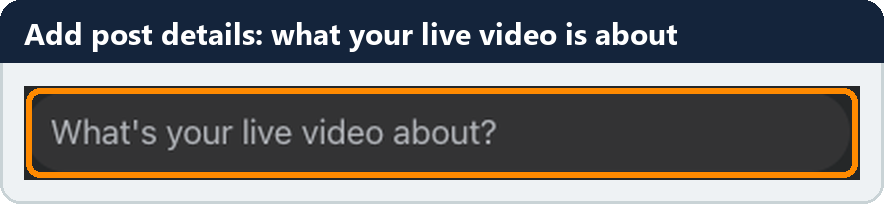
In Create post, type a Title (Facebook requires one), for example "Fall League week 6: Sharks vs Jets", and a Description (also required), such as who's playing and where. Then choose Save. People see these on the post. With Don't show to... you can hide the video from some people; on a Page you choose the audience there.
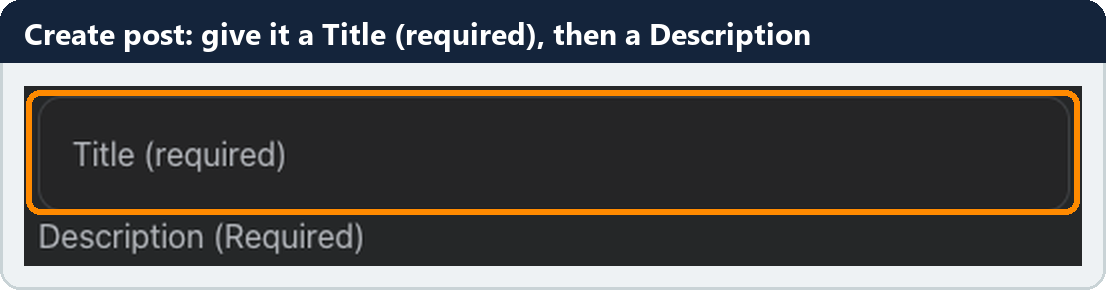
Zoomed picture: Facebook Create post: the Title (required) box above the Description (Required) box
5. Go live, and end the stream
- In LeagueOrbit, choose Continue and then Go live. Your video goes straight from your phone to Facebook.
- In Live Producer, the preview shows your stream after a few seconds. Then press Facebook's Go live. Until you do, only you see the preview.
- To finish, press Stop in LeagueOrbit, then End live video in Live Producer. With a persistent stream key, you start the next stream from the same key: set up the post in Live Producer again, and choose Go live again in LeagueOrbit.
If Facebook doesn't show your stream, check the stream key is the current one (after a Reset it changes) and that only one stream is using it. More about streaming: Live stream your matches.