

Live Stream Pool, Darts and Cornhole Matches to YouTube and Facebook
Step-by-step with pictures, for players and organizers on Free and paid plans: live stream pool, darts and cornhole from your phone or OBS with a scoreboard overlay to YouTube, Facebook or any RTMP service, with scenes, clips, a remote scorer and several tables.
The names and results shown are made up (the Maple Street Pool League is a demo organization).
LeagueOrbit can stream a match from your phone to YouTube, Facebook or any streaming service, with the live score on screen. Streaming from a phone works in the Android app now; the iPhone app is to follow. The video goes straight from your phone (or your computer's OBS) to the platform. It never passes through LeagueOrbit. Open Go live in the LeagueOrbit app or on the website and follow the steps.
What comes with each plan
- Free: 720p at 30 fps to one platform, with the live score overlay and the basic scenes (Camera + score, Camera only, Starting soon, Break, Be right back, Winner). A small LeagueOrbit logo with LeagueOrbit.com is always on the video.
- Player Plus: 1080p Full HD at 30 or 60 fps to one platform, no mark, every scene including Bracket / standings, and a copy saved on your phone.
- Organizer: everything in Player Plus, plus two platforms at once (for example YouTube and Facebook), every table, and codes for staff phones.
60 fps is offered when your device can encode it and your upload is fast enough: about 1.5 times the upload of 30 fps. Plans are chosen on the website under My account → Your plan. There are no purchases in the app.
Which steps are yours
- Player, Free: follow "Set up your first stream" below. You stream one match at 720p HD to one platform, with the LeagueOrbit logo and LeagueOrbit.com in the corner. Keep score on the live screen, or use "Let someone else keep score".
- Player, Player Plus: the same steps. On the Check step you can choose 1080p Full HD and 60 fps, and you can turn on Save a copy on this device, the Clip button and Auto-record if the internet drops. There is no LeagueOrbit mark on the video.
- Organizer, Free: stream one table at a time. In your tournament's Broadcast section, set a table's scenes, then open Go live on the phone at that table and follow the steps below with that table's overlay link. While one table is on, the other tables show "Free plan: one table at a time" until you set the first one to Off.
- Organizer plan: everything in Player Plus, plus two platforms at once and every table. Use "Tables and staff phones" below to give each staff phone a code.
Organizers: set up streaming on the website
- Open your tournament's Broadcast section. On the website, open the tournament and choose Broadcast. Each table has its own overlay scene, a stream link to show players, and Go live from a phone or OBS.
- Free plan: one table streams at a time, with the score bug. While one table is on, the others say so until you set the first one to Off.
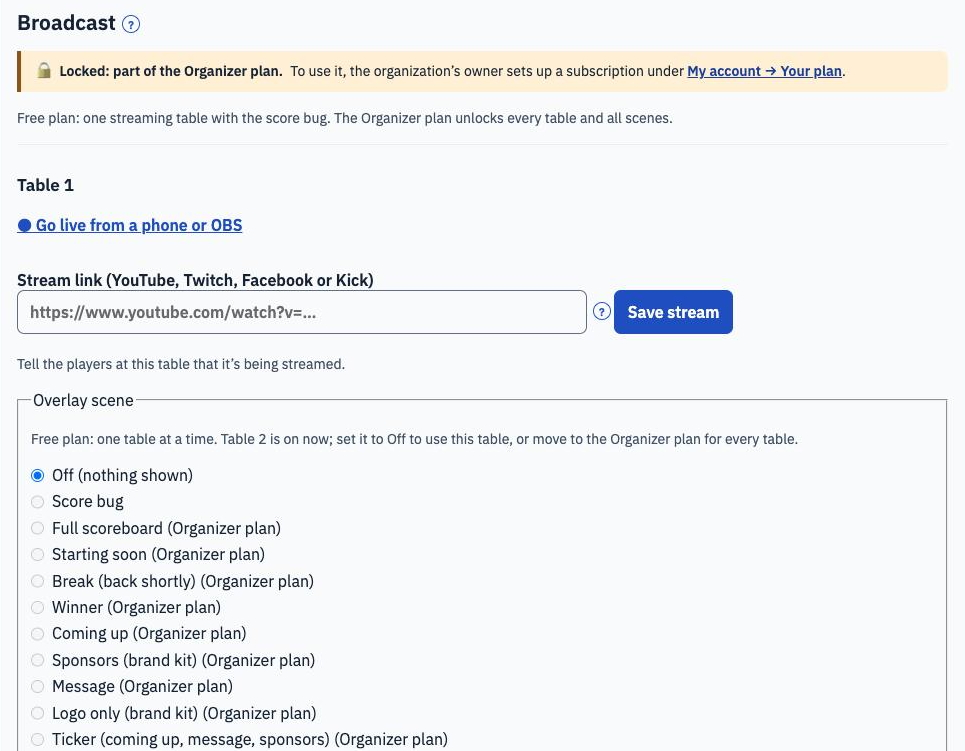
Zoomed picture: Free plan, Broadcast section: the Organizer plan lock note, Table 1 with Go live from a phone or OBS, the stream link box, and the overlay scenes where only Off and Score bug are open and the rest say Organizer plan
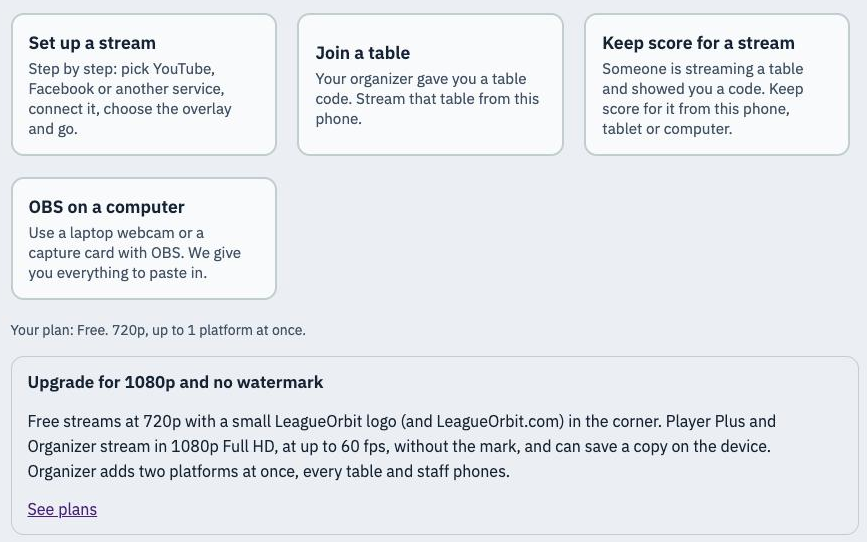
Zoomed picture: Free plan, Go live on the website: Set up a stream, Join a table, Keep score for a stream and OBS on a computer, with "Your plan: Free. 720p, up to 1 platform at once" and the upgrade note
- Organizer plan: every table can stream and switch scenes: score bug, full scoreboard, Starting soon, Break, Winner, Coming up, Sponsors, Message, Logo only and the ticker.
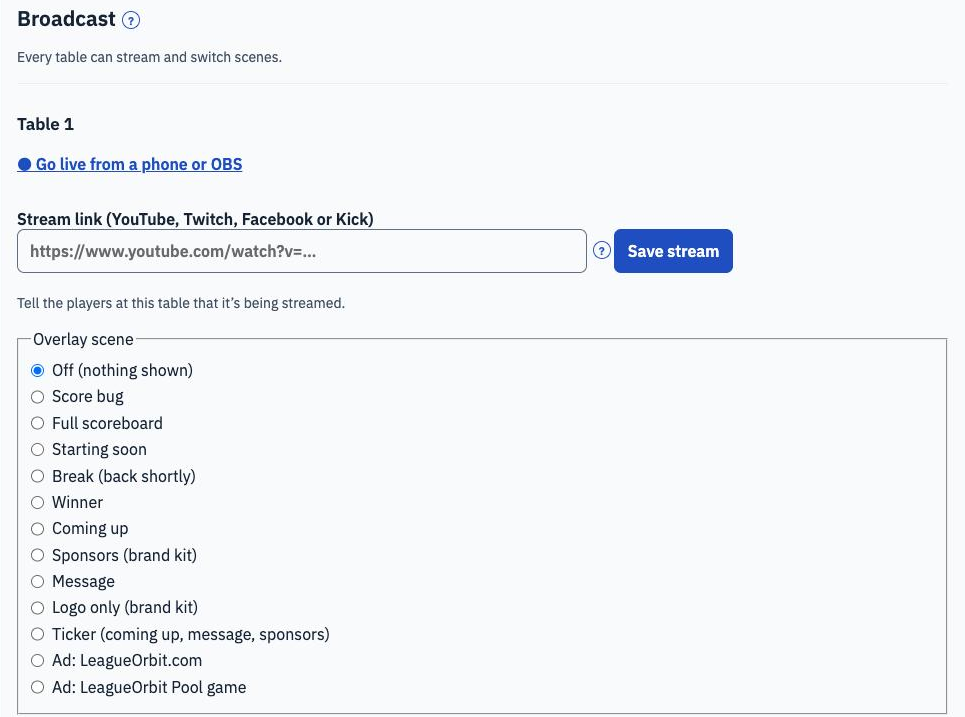
Zoomed picture: Organizer plan, Broadcast section: "Every table can stream and switch scenes", with Table 1's stream link and every overlay scene open
- Organizer plan, Go live: you also get Tables and staff phones, and you can stream to two platforms at once.
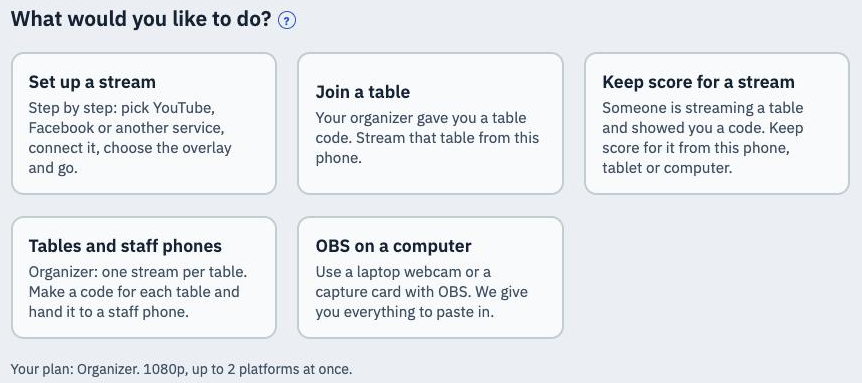
Zoomed picture: Organizer plan, Go live on the website: Set up a stream, Join a table, Keep score for a stream, Tables and staff phones and OBS on a computer, with "Your plan: Organizer. 1080p, up to 2 platforms at once"
- Give each table a staff phone. Choose Tables and staff phones, type the table name, paste its overlay link from Broadcast, pick where it streams to and choose Add table and make code. Give the code (or the QR code) to the phone at that table. The code is shown once.
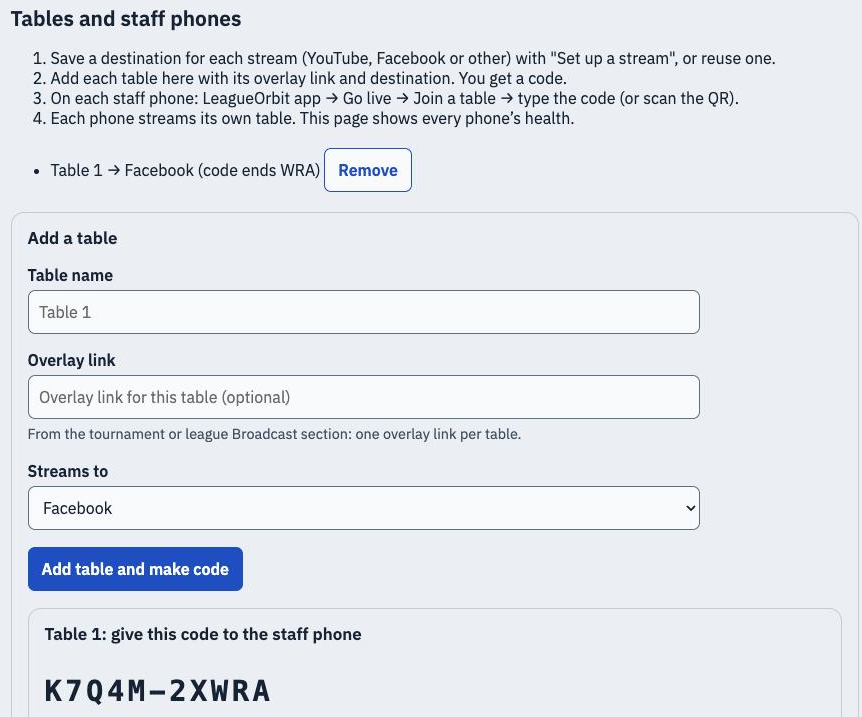
Zoomed picture: Tables and staff phones: the four steps, Table 1 streaming to Facebook with a Remove button, the Add a table form, and the code to give the staff phone
- On each staff phone: open the LeagueOrbit app, then Go live, then Join a table, and type the code. The website shows every phone's health while they're live.
Set up your first stream
- Open Go live. In the app or on the website, choose Set up a stream.
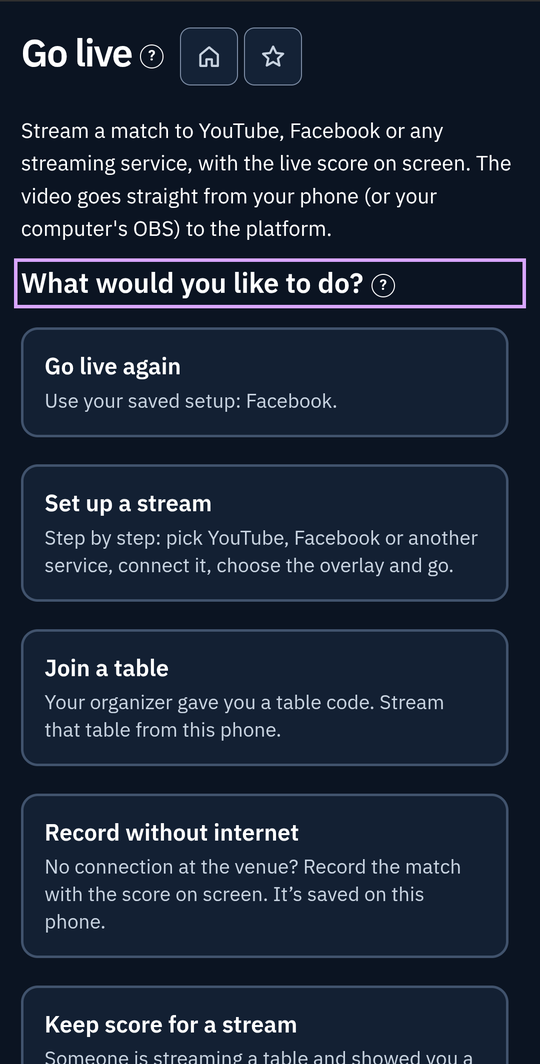
Zoomed picture: The Go live start screen with the choices Go live again, Set up a stream, Join a table, Record without internet and Keep score for a stream
- Choose where the video comes from. This phone or tablet uses its camera: back, front, or a USB camera on Android, or on an iPad or iPhone with USB-C. OBS on a computer uses a laptop webcam or a capture card.
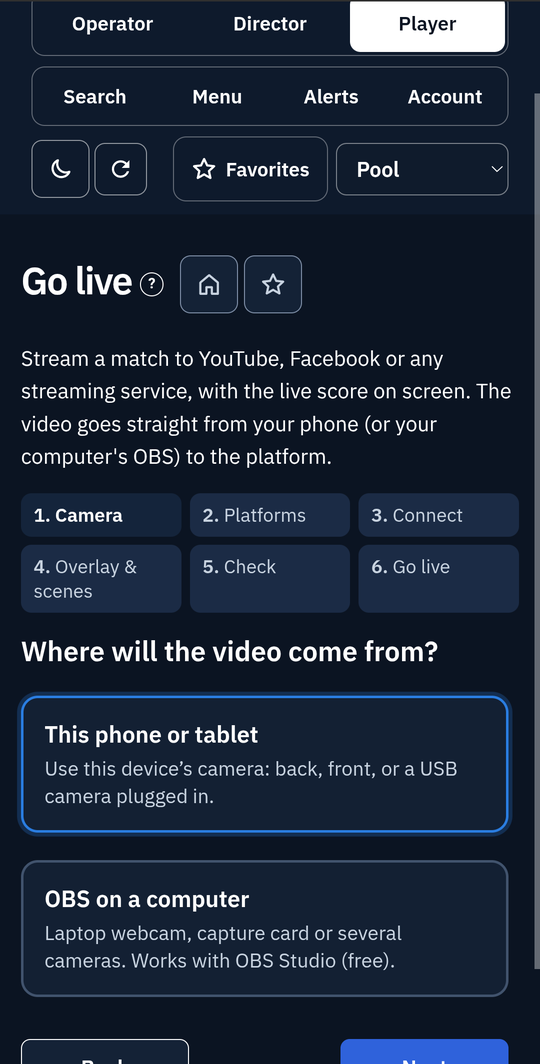
Zoomed picture: Step 1, Camera: Where will the video come from? This phone or tablet, or OBS on a computer
- Choose where people watch: YouTube, Facebook, or another service such as Kick, Twitch or Restream. On Free and Player Plus you pick one; Organizer can pick two.
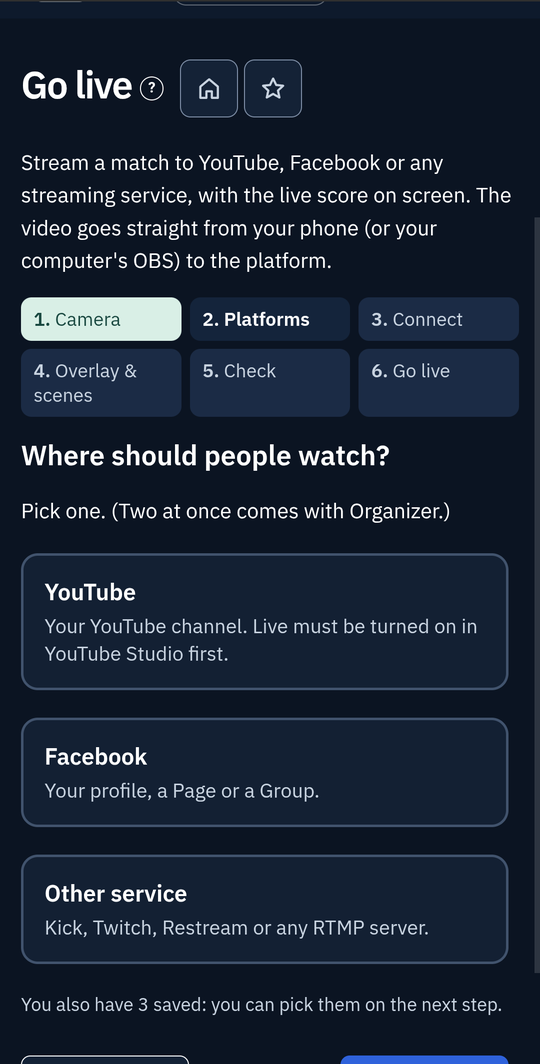
Zoomed picture: Step 2, Platforms: Where should people watch? YouTube, Facebook or Other service
- Connect each one. Paste the stream URL and stream key (see below). For YouTube you can also sign in with Google. Facebook always uses a stream key. Keys are kept encrypted. Only you, and phones you give a table code to, can use them.
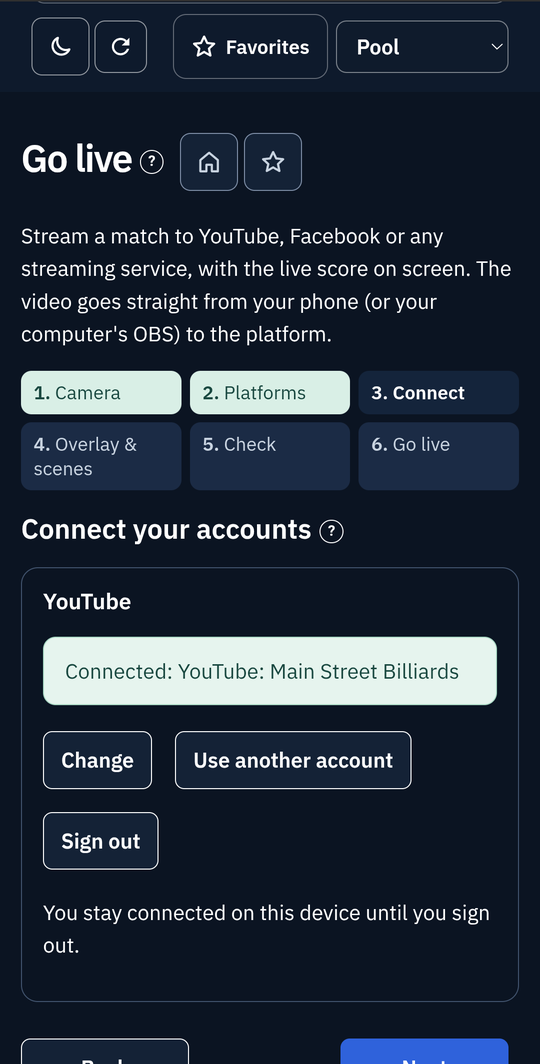
Zoomed picture: Step 3, Connect: a YouTube channel shown as connected, with Change, Use another account and Sign out buttons
- Choose the overlay, layout and scenes. Pick one of My overlays, or paste the overlay link from your tournament or league's Broadcast section. A preview shows what will be drawn over the camera. Pick landscape (16:9) or portrait (9:16), and the scenes you want to switch to.
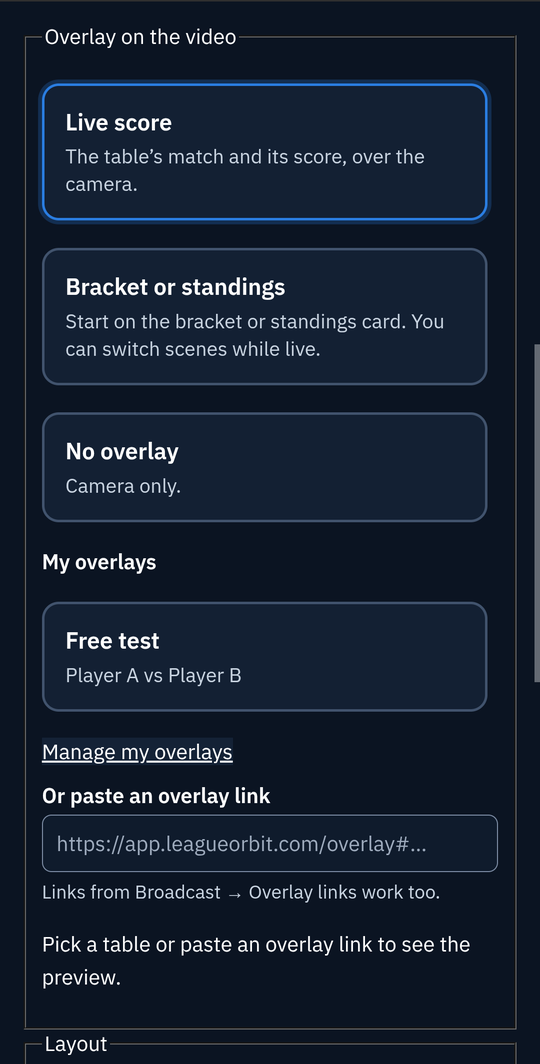
Zoomed picture: Step 4, Overlay: Live score selected, a saved overlay under My overlays, the box to paste an overlay link, and a preview with the score bar
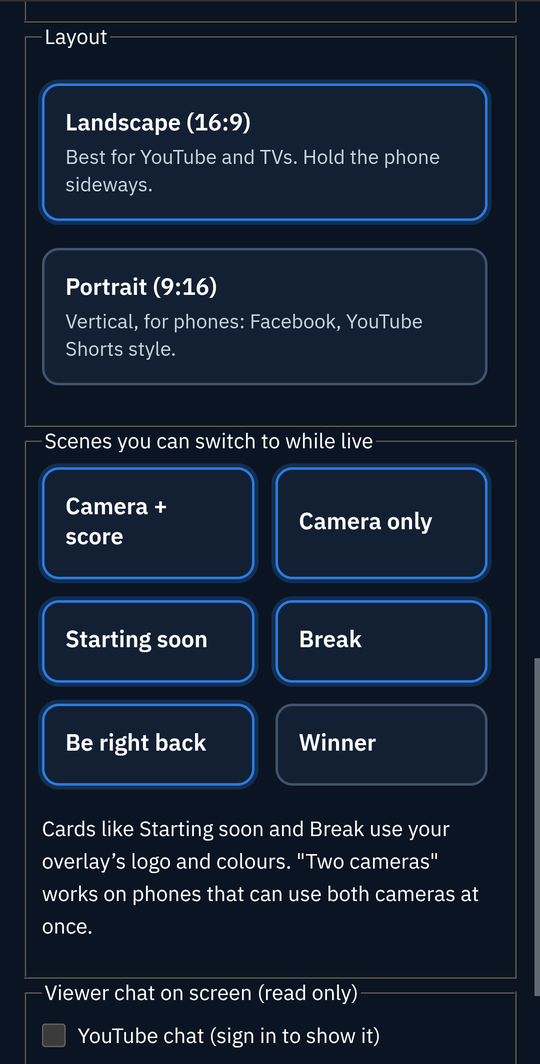
Zoomed picture: Step 4, Layout and scenes: Landscape or Portrait, and the scenes Camera + score, Camera only, Starting soon, Break, Be right back and Winner
- Run the quick checks. LeagueOrbit tests your upload speed and looks at what your device can handle, then recommends a quality. Choose Apply recommended. On Free it shows 720p30; Player Plus and Organizer can choose 1080p and 60 fps.
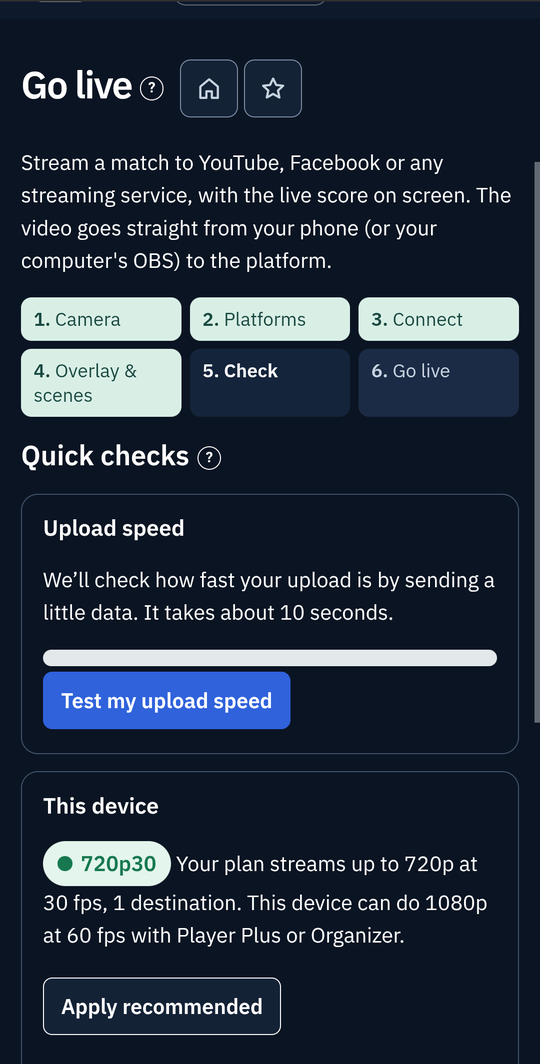
Zoomed picture: Step 5, Check: the upload speed test and This device, recommending 720p30 on the Free plan
- Pick what you're scoring. Search for a league or tournament match, or open A casual match (type the names), type both names and the race, and choose Use this casual match. The names go onto your overlay.
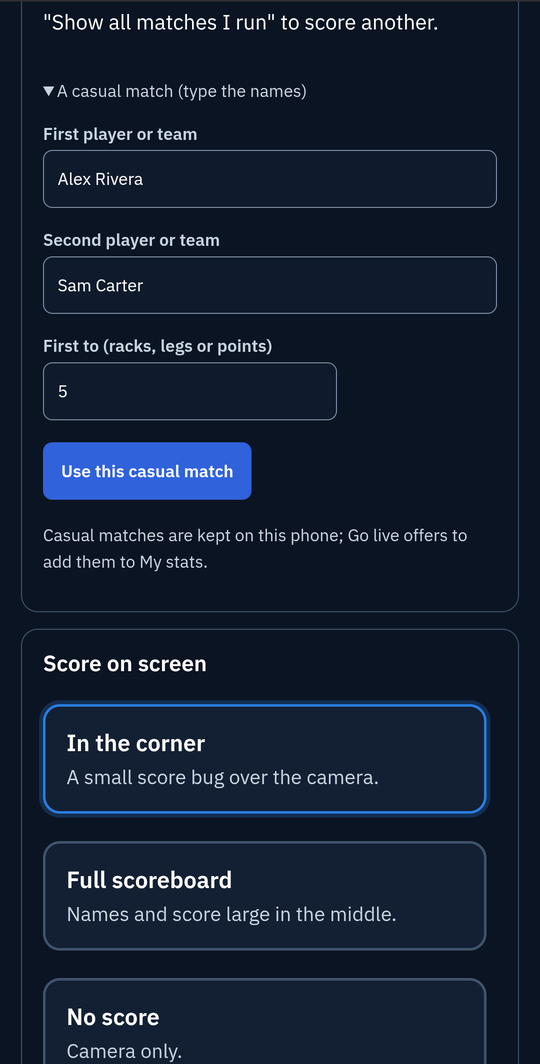
Zoomed picture: Step 6, Go live: a casual match with Alex Rivera and Sam Carter, first to 5, and the Use this casual match button
- Go live. Choose Open camera. The camera opens full screen with the overlay. Check the picture and sound, then choose Go live.
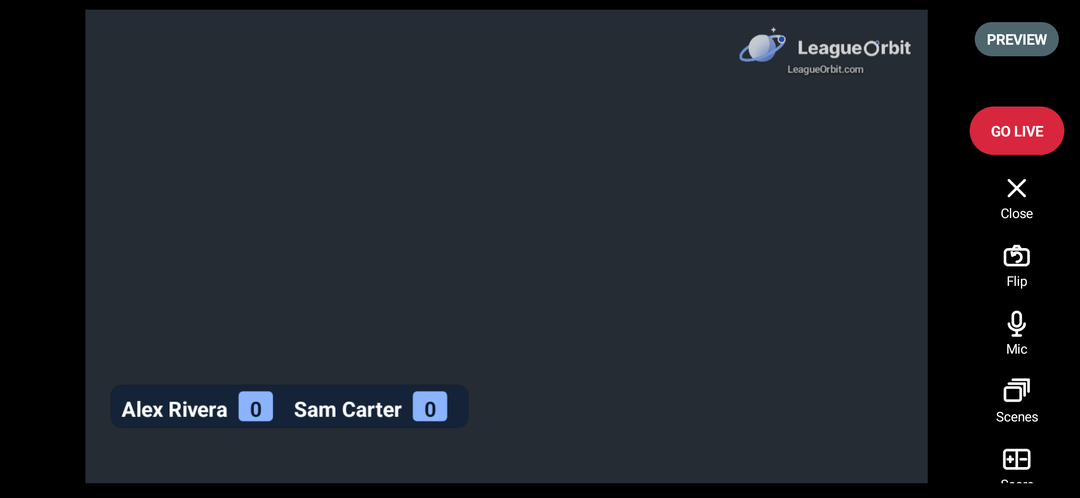
Zoomed picture: The live screen in landscape: the camera picture with the LeagueOrbit logo and LeagueOrbit.com in the corner (Free plan), the score bar for Alex Rivera and Sam Carter, and the Go live, Close, Flip, Mic, Scenes and Score buttons
Where to find your YouTube stream key
- On a computer, open YouTube Studio and sign in to your channel.
- Choose Create, then Go live. The first time, YouTube asks you to verify your phone number, and turning on live streaming can take up to 24 hours.
- Choose Stream, then copy the Stream key. The address is filled in for you: rtmps://a.rtmps.youtube.com/live2.
Where to find your Facebook stream key
Facebook works with a stream key for Pages, Groups and profiles. There's no Facebook sign-in.
- Open Facebook Live Producer (facebook.com/live/producer) in a browser. On a phone, use the browser, not the Facebook app.
- Pick where to post: your profile, a Page you manage, or a Group.
- Under Select a video source, choose Streaming software and copy the Stream key. Turn on Use a persistent stream key to reuse it every week. The address is rtmps://live-api-s.facebook.com:443/rtmp.
Any other service that accepts RTMP or RTMPS works too: copy its server (ingest) address and its stream key.
Go live again
Next time, open Go live and choose Go live again. Your destinations, overlay and scenes are saved, on the website and in the app, so you can set up on a computer and then stream from your phone.
While you're live
- Health badge: green is good, yellow means the connection is struggling, and red means it's dropping. Select it for details: upload speed against the target, frames dropped, and data waiting to send.
- Automatic quality: when the connection slows, LeagueOrbit lowers the quality, then raises it again when things improve.
- Reconnecting: if the internet drops or the phone switches from Wi-Fi to mobile data, the stream reconnects by itself and keeps the same broadcast.
- Scenes: select a scene to switch: Camera + score, Starting soon, Break, Be right back, Winner, Bracket / standings.
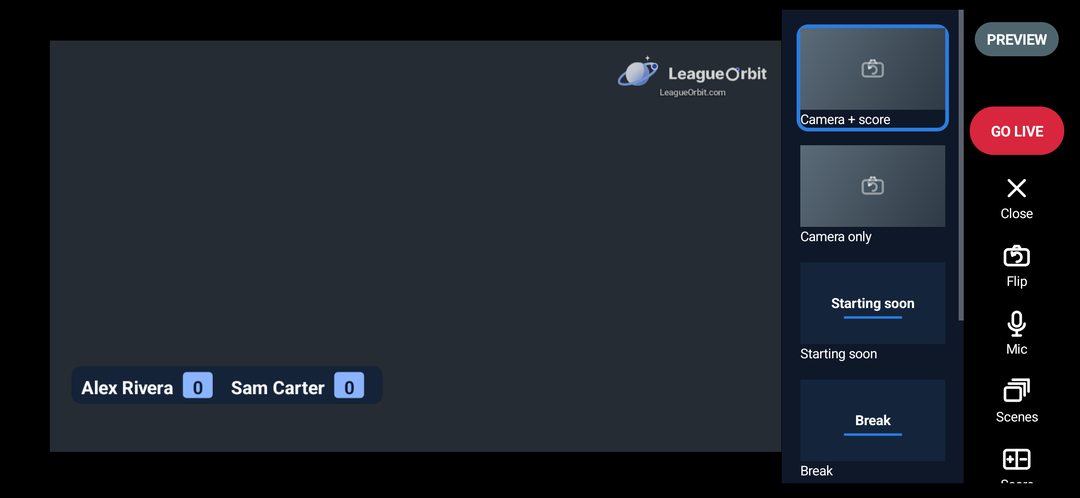
Zoomed picture: The Scenes panel open on the live screen: Camera + score, Camera only, Starting soon and Break
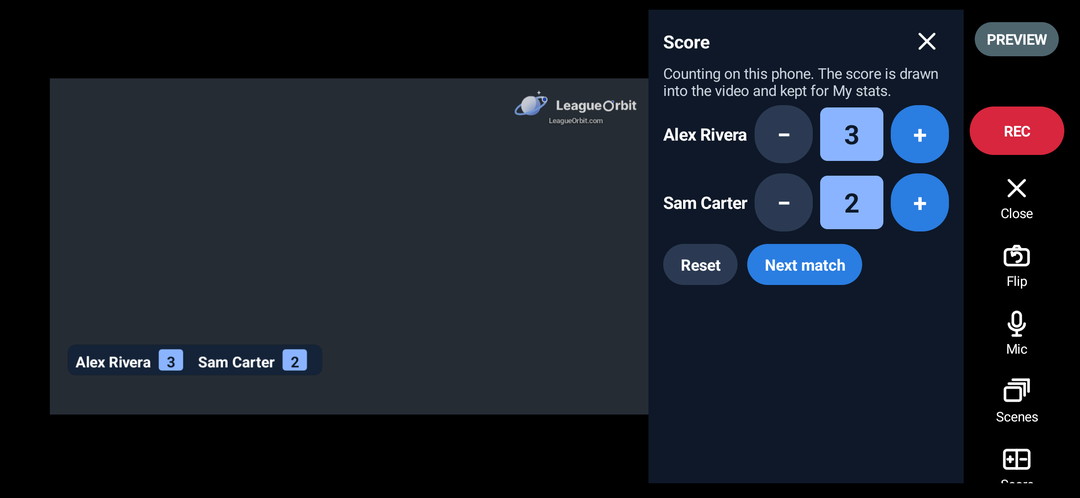
Zoomed picture: The Score panel open on the live screen: plus and minus buttons for each player, 3 to 2, with Reset and Next match. The score bar on the video shows 3 to 2
- Clip and Scorer: save the last few seconds, or let someone else keep score (see below).
- Two cameras: on phones that can use both cameras at once, the other camera shows small in a corner.
- Flip, Mic and Score: switch cameras, turn the microphone off (bar music can get a stream muted or taken down), and keep score on the same phone. The score panel isn't shown on the stream.
Streaming to two places at once
With the Organizer plan you can stream to two platforms at once. Each platform gets its own copy of the video, so you need about twice the upload speed: about 10 Mbps for two at 1080p. How well it works depends on your phone, tablet or computer and on the venue's internet, and drops can happen. If one platform drops, the other keeps going. The speed check tells you, for example: "Your upload supports 1 stream at 1080p. 2 streams may drop."
Save a copy on your device
With Player Plus or Organizer, turn on Save a copy on this device to record the stream, with the overlay, while you're live. The match is kept even if the internet drops. LeagueOrbit checks free space first (about 2 GB an hour at 1080p, or 1 GB at 720p), warns when space runs low, and saves to your Movies or Photos, in a LeagueOrbit folder or album.
Let someone else keep score
- While you're live, choose Scorer on the live screen. A code and QR code appear.
- On their phone, tablet or computer, they open Go live, choose Keep score for a stream, and type the code (or scan it).
- You get a question on your live screen. Choose Accept.
- They choose Open scoring and keep score for this table's match only. The stream shows it within a few seconds. They can also press Clip to save a clip on your phone.
- Their name shows on your live screen. Select it to remove their access. It also ends on its own at 4 AM.
This works for tournament tables, when you're the tournament's director. On league nights, the teams score on the match sheet.
Clips
With Player Plus or Organizer, choose a Clip button length (15 to 120 seconds) when you set up. While live, Clip saves the last few seconds to your gallery, in Movies/LeagueOrbit/Clips. Your remote scorer can press Clip too.
Record without internet
No signal at the venue? Choose Record without internet in Go live, or Record a match without internet on the app's "You're offline" screen. Type the two names, then Record. Use the big buttons to keep score: the score is drawn into the video. When you stop, the video goes to your gallery and the score is kept on the phone. Next time you're online, Go live lists those matches so you can add them to My stats.
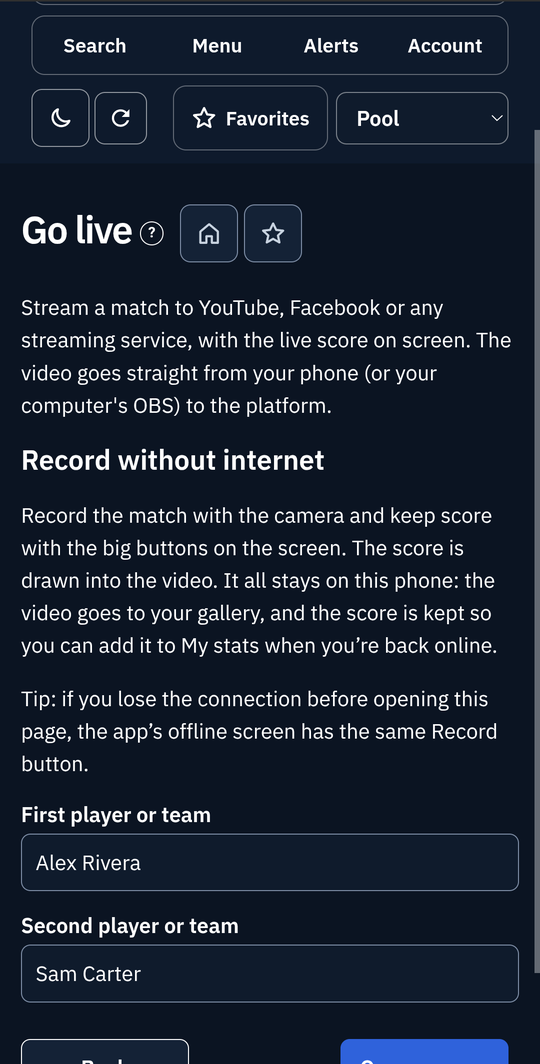
Zoomed picture: Record without internet: type the two names, then Open camera. The video goes to your gallery and the score is kept for My stats
Auto-record if the internet drops
With Player Plus or Organizer, turn on Auto-record if the internet drops when you set up. If the stream loses its connection, the phone starts recording (with the overlay) and stops when the connection is back, or keeps going if you choose. Choose the most it may use (2, 5, 10 or 20 GB) and what happens at the limit: stop, or keep the newest and drop the oldest part. It always leaves 2 GB free on the phone, and the live screen shows how much it has used.
Tables and staff phones
- With the Organizer plan, save a destination for each stream.
- In Go live, choose Tables and staff phones and add each table with its overlay link and destination. You get a code and a QR code.
- On each staff phone, open the LeagueOrbit app, then Go live, then Join a table, and type the code.
- Every phone streams its own table, and Go live on the website shows each phone's health.
Stream from a computer with OBS
Browsers can't send live video to YouTube or Facebook by themselves, so on a computer LeagueOrbit sets up OBS Studio (free) for you. Choose OBS on a computer. Go live checks what your computer can handle and recommends the encoder (NVIDIA, Intel, AMD, Apple or software), the size and the bitrate. Download the OBS profile, copy the server and key, add the overlay as a Browser source, and download the scene collection with your break and starting-soon cards. Then choose Start Streaming in OBS.
If something goes wrong
- "Didn't accept the stream. Check the stream key": copy the key again with the platform's Copy button. Keys can change when you create a new stream.
- "Live streaming isn't turned on for this YouTube channel": open YouTube Studio, choose Create, then Go live, and follow the steps. The first time can take up to 24 hours.
- Yellow or red badge: move closer to the router, use the venue's staff Wi-Fi, ask others to stop downloading, stream to one place, or try mobile data.
- The phone gets hot: plug it in, keep it out of the sun, take off the case, and choose 30 fps.
For overlays in OBS or vMix without the app, see Pool and Darts Scoreboard Overlays for OBS and vMix.