

How to Run a Pool Tournament: Brackets, Seeding and Scores
Add entrants, seed and draw the bracket, score matches and follow a single or double elimination pool tournament through to the champion.
Last updated
The names and results shown are made up (the Maple Street Pool League is a demo organization).
Here a director runs the Maple Street Fall Cup, a double-elimination event for eight players.
Add entrants
On the tournament's Entrants page, add players one at a time or paste a list (a name per line, with an optional rating after a comma). Each entrant can be linked to a player on your player list so the result appears in their statistics.
When check-in is required, the page lists who hasn't checked in yet, by name, so you know who to look for.
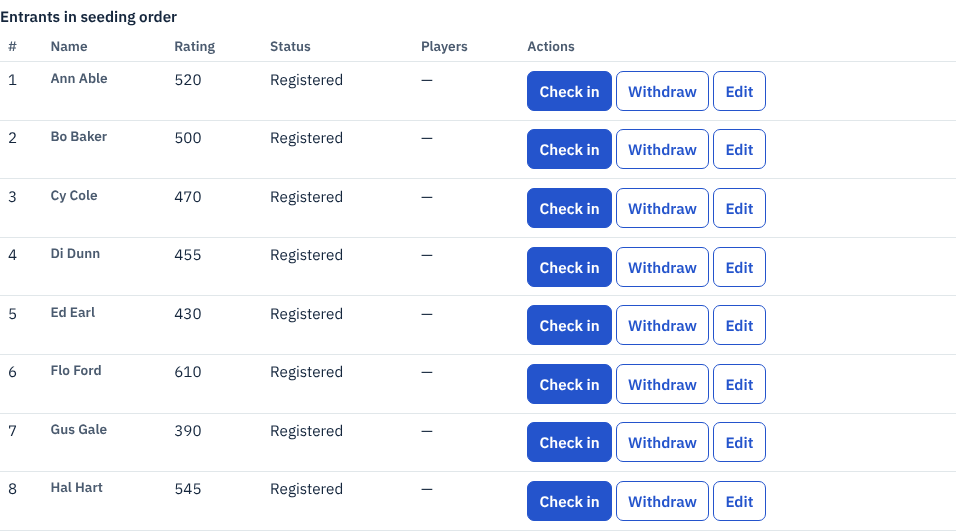
Zoomed picture: The entrants table for the Maple Street Fall Cup: eight players in seeding order with their ratings, status and actions
Make the draw
- Open Bracket. The draw preview shows the order and the first-round matches.
- Choose Shuffle again if you want a different random draw.
- Choose Confirm the draw. The server makes the same draw from the same seed and refuses if anything changed since your preview.
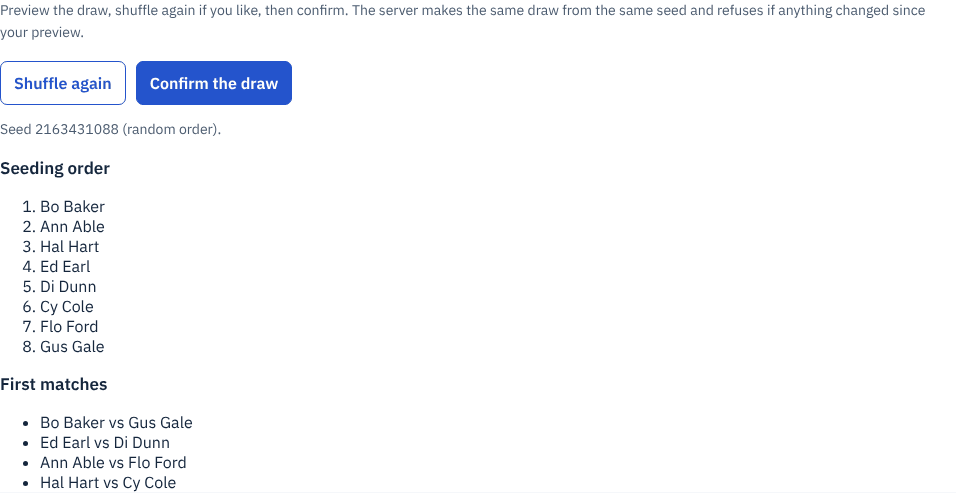
Zoomed picture: The draw preview: the seeding order and the first-round matches, with Shuffle again and Confirm the draw
Score matches
Open Matches. Matches ready to play are listed first. Enter each player's racks and choose Save result; a forfeit (no-show or left) is chosen from the list. Assign tables to send players to the right table.
The Director's desk at the top of Matches lists what needs you: free tables with matches waiting, long matches, players' scores that differ, results flagged for review, and players whose opponent hasn't shown up.
Checking in at your table
When you call a match to a table, each player can check in when they get there:
- On their phone: on their match in Scoreboard (Find a match to score), they choose I'm at the table.
- On the table's tablet: the table's scoring code page shows Who's here? with both names. Each player taps their own name.
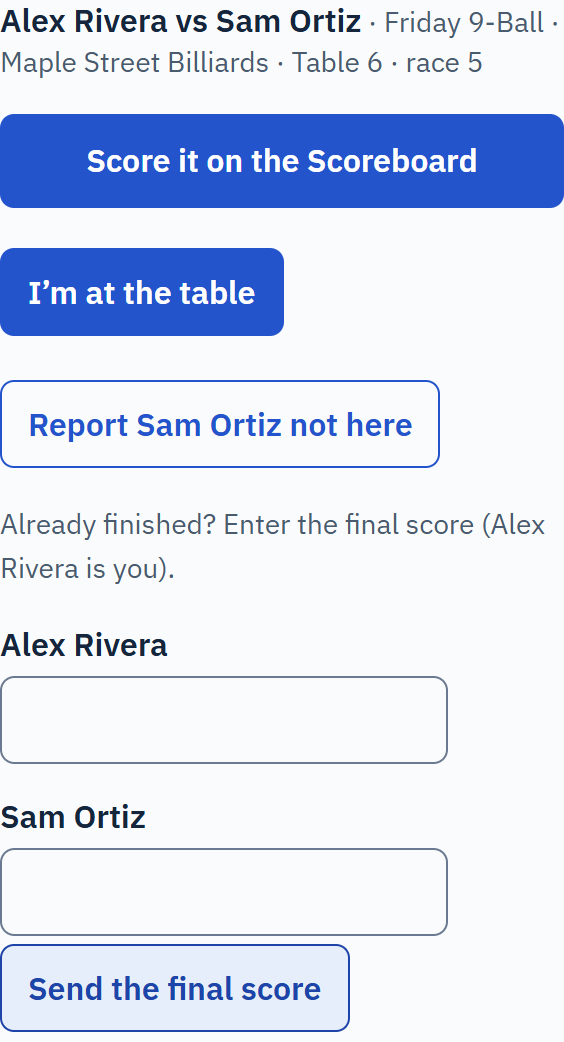
Zoomed picture: Score a match on a phone: Alex Rivera vs Sam Ortiz on Table 6 with the I'm at the table button above Report Sam Ortiz not here
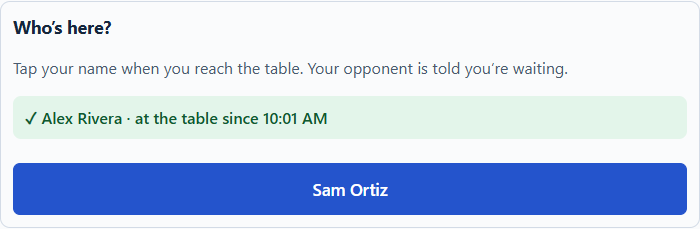
Zoomed picture: The table tablet's Who's here? screen: Alex Rivera at the table with the time they arrived, and a Sam Ortiz button to tap
If a scoring code has ended or been replaced, opening its page shows This scoring code isn't valid any more with a Code box. Give the player the new code to enter there.
Each player checks in once per match. Their opponent gets an alert and a phone notification (Match calls): "Alex Rivera is at Table 6 and waiting for you."
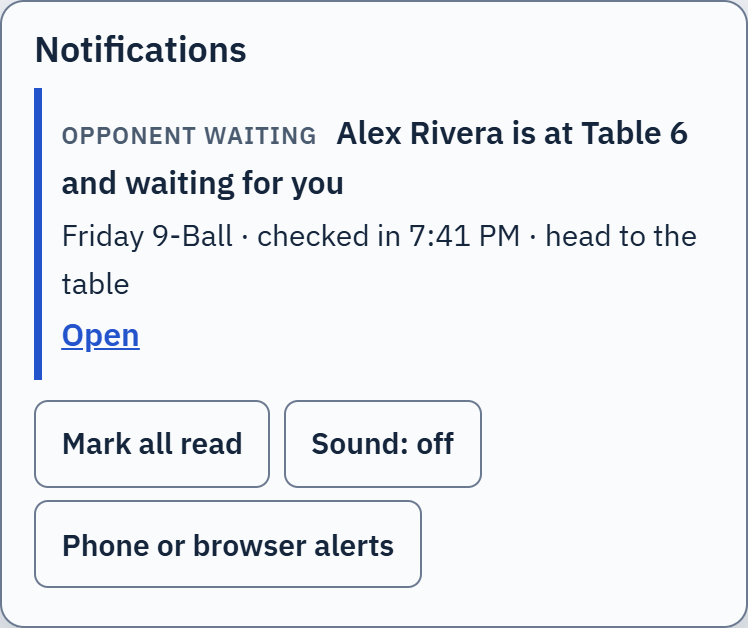
Zoomed picture: The alerts list on a phone: Alex Rivera is at Table 6 and waiting for you, Friday 9-Ball, checked in 7:41 PM, head to the table
In Matches, each called match shows who has checked in and when, and Ready once both are there. The Director's desk lists anyone who is waiting for their opponent, and for how long.
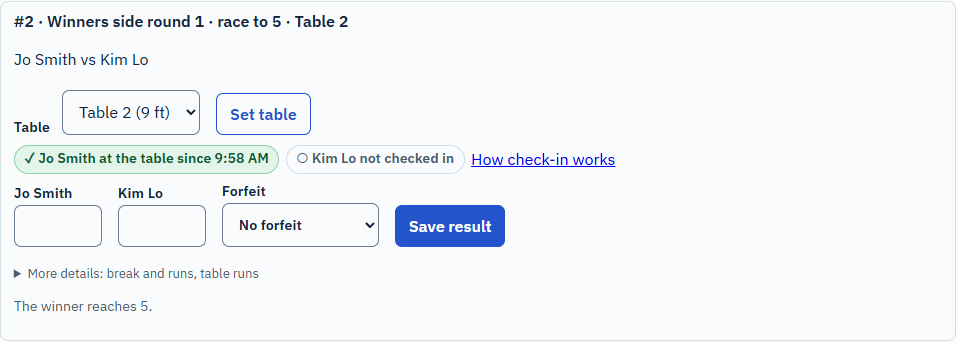
Zoomed picture: A match card in Matches for Table 2: Jo Smith at the table with the time they arrived, Kim Lo not checked in, and How check-in works
On the public tournament page, Tables now shows a card for each table in use, with a status for each player:
- At table (green), with the time they checked in, once both are there. The card also says Ready.
- Waiting for the opponent (amber), with the minutes they have been waiting.
- Not checked in (grey).
- No-show reported (red), linked to the match, while a report is open.
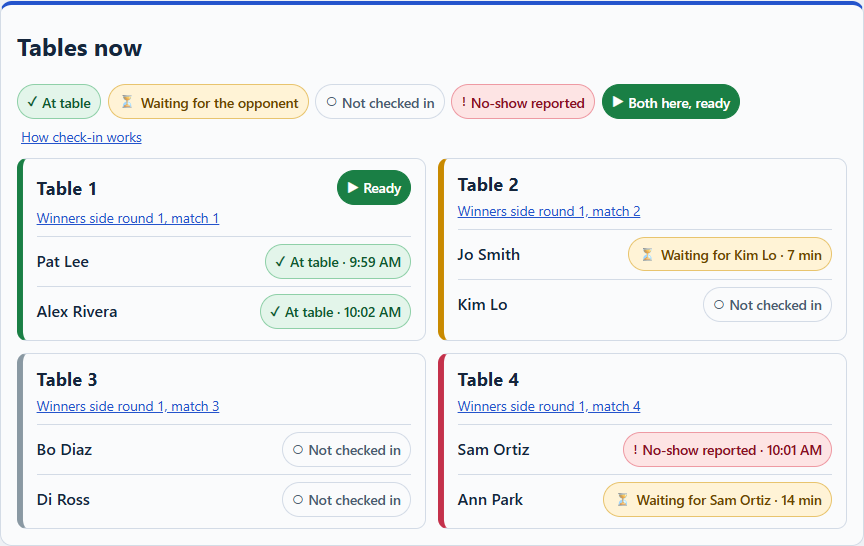
Zoomed picture: Tables now on the public tournament page: Table 1 Ready with Pat Lee and Alex Rivera at the table, Table 2 with Jo Smith waiting for Kim Lo, Table 3 with nobody checked in, and Table 4 with Ann Park waiting and a no-show reported for Sam Ortiz, under the legend and How check-in works
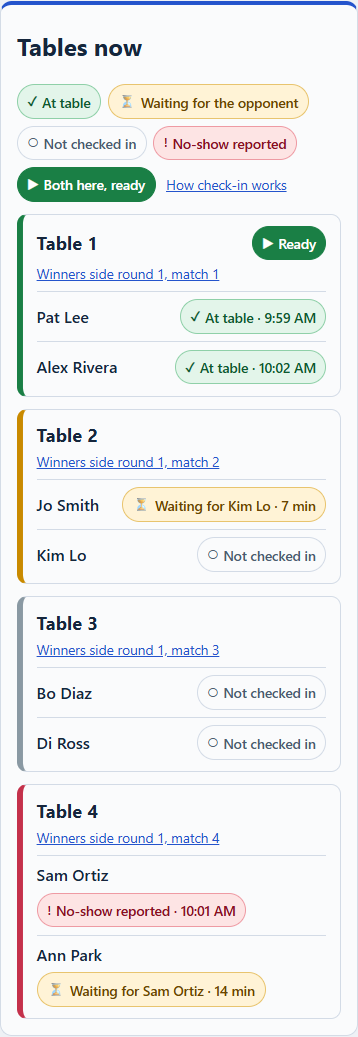
Zoomed picture: Tables now on a phone: the same table cards stacked one per row, with the legend at the top
Check-ins clear when the result is entered or the match leaves its table. If you start a no-show timer, it counts from the first check-in at the table, so the player who arrived first doesn't wait twice. In doubles, either partner can check the pair in.
When an opponent doesn't show up
Once a match is called to a table, the player who is there can tell you their opponent isn't. They choose Report … not here on their match in Score a match, or on the table's scoring code page they choose Opponent not here? and tap their own name. One report can be sent per match every 5 minutes.
You get an alert on your phone (the Tournament desk notifications) and on the Director's desk, showing the table, the match, who is waiting, who is missing, and when the match was called and reported. On the match in Matches you can:
- Call again: the missing player gets a new "The director is calling you to Table 4" alert.
- Start no-show timer: 10 minutes unless you change it (1 to 60). The match shows when it ends.
- Forfeit: confirm, and the missing player forfeits (recorded as a no-show). The player who is there moves on.
- Dismiss: the opponent turned up, or the report was a mistake.
Each step is kept with the match. While a report is open, the public page and the table's code page show "No-show reported at 7:42 PM".
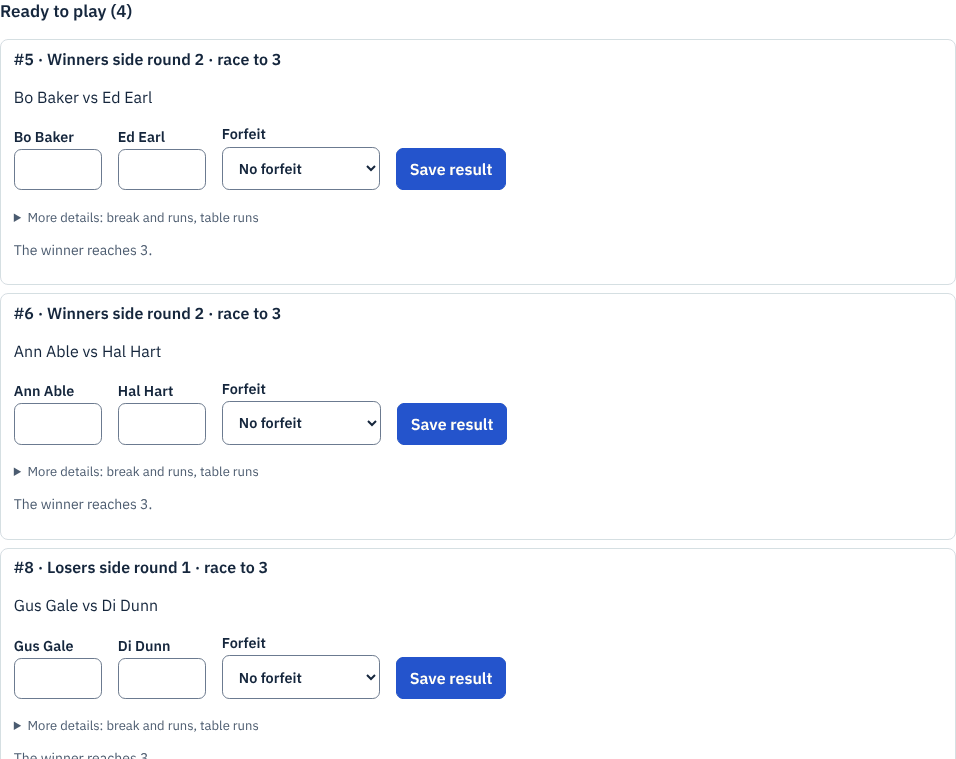
Zoomed picture: Matches ready to play: Bo Baker vs Ed Earl and Ann Able vs Hal Hart in winners round 2, and Gus Gale vs Di Dunn on the losers side, each with score boxes and Save result
Follow the bracket
Open Bracket to see the whole picture: the winners side, the losers side and the final. Each card shows its number, the players and the score, and where the loser goes next.
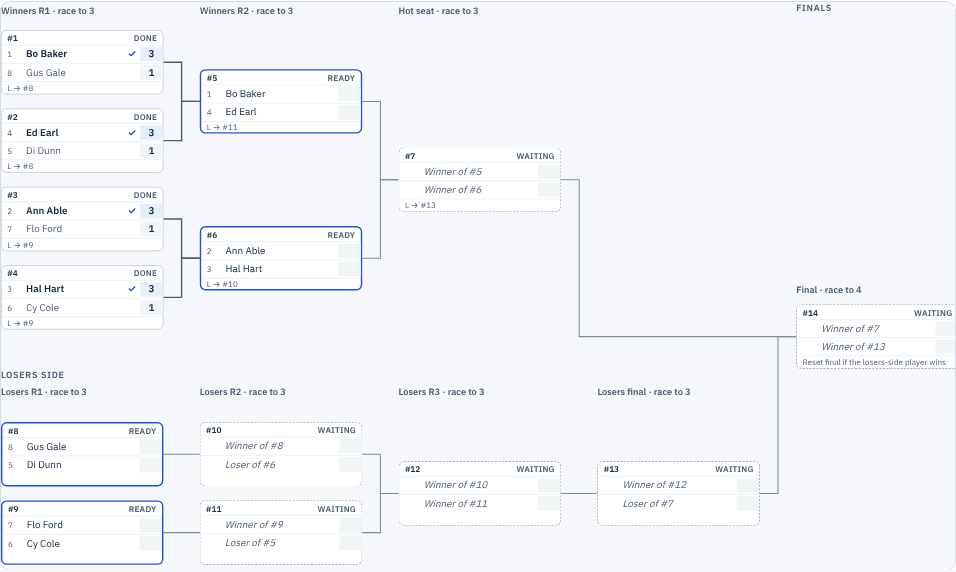
Zoomed picture: The double-elimination bracket after round 1: winners round 1 results, round 2 ready, the losers side filling in, and the final waiting
Share the public page from Share so players and spectators can follow along without signing in.
Extras
Beside the numbered steps, Extras has Broadcast (stream overlays and TV boards), Money (entry fees, the prize fund and payouts) and Player Auction. The Player Auction is on the website only, not in the LeagueOrbit app: see Run the Player Auction from phones.
When it's over
A finished tournament closes and archives by itself 12 hours after the last result, so it can't be changed by accident. To close it sooner, choose Archive in Setup. To fix something afterwards, choose Restore in Setup, make the change, then choose Archive again. A tournament you reopen stays open until you archive it.
Cancel or delete a tournament
Both are in Setup, beside Archive. Neither one sends any email, so tell your players however you like.
- Cancel tournament stops play and sign-ups and shows Cancelled on the public page and TV displays. Results stay. Reopen tournament brings it back. A finished tournament can't be cancelled.
- Delete tournament asks you to type the tournament's name, then hides it from your lists and its public page. To bring it back, choose Restore under Recently deleted on the Tournaments page. It comes back archived. You have 30 days. Completed matches stay in each player's history either way, and unplayed matches are dropped.